Showing posts with label software. Show all posts

Tuesday, February 3, 2015

Tech Tip: How to have an N-8000AF Time Sync to NTP Server

NTP stands for Network Time Protocol, and it is an Internet protocol used to synchronize the clocks of computers to a time reference.
For this to work requires that the N-8000AF can reach the NTP Server on the Internet.
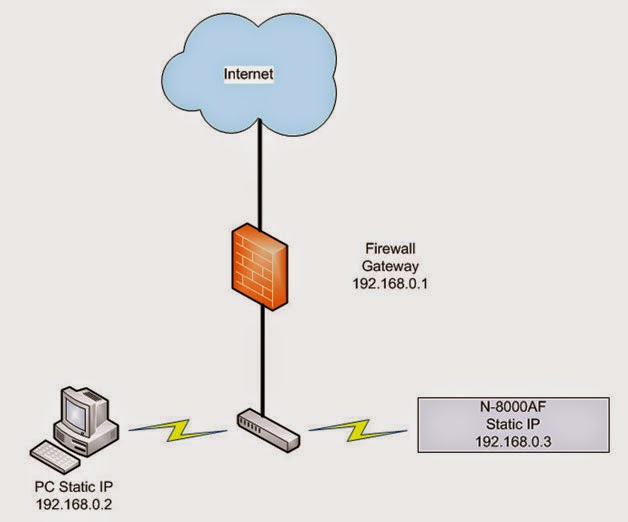
There will different ways of doing this but it is important to note the N-8000 system does require static IP addressing.  In this example, a request was made to the IT administrator to provide a range of static IP address that could get through a networks gateway to the Internet.
By using these static IP addresses the computer programming the N-8000 system and the N-8000AF would be able to reach the NTP time server.

In the N-8000 Programming Software, open to the General > System Settings Tab.
Set the N-8000AF as the Clock Master and NTP Client.
In the NPT Settings enter the NTP Server address, server port and sync time in hundred hours.
If you now saved and uploaded your program file, the N-8000AF would be ready to send and receive time adjustment.

How does NTP handle the daylight savings time switchovers?


The Ability to synchronize to an NTP Time Server is now possible with the latest N-8000 Programming software ver. 4.1.0 and N-8000AF firmware ver. 4.10. This feature will keep a schools bell schedule on time year after year without ever drifting.
Because NTP is based on UTC which does not have a daylight savings time period, a switchover is not necessary inside the NTP system. The operation systems of servers and clients are solely responsible for switching from/to DST.

You will need to enable DST settings in the N-8000 to keep Bell Schedules on time in the US with only a few exceptions.
 
Trouble shooting NTP

Here is are a couple examples of when there was a successful and a not so  successful NTP time adjustment.
At 09:45:30 you see the NTP start and then 09:45:30 NTP Complete. Time adjustment was made and system is working as expected. Now see 14:30:34 and you can that there is an NTP error. Let’s explore how to troubleshoot an NTP error.

  • Check to see if the NTP server is sending a Time Adjustment back. There a number way to test an NTP server, here is a simple to use web site
In this result the NASA server at 198.123.30.132 is not sending back command “adjust time server” as it does for the UCLA server at 164.67.62.194.

NASA NTP Server
29 Jan 20:50:43 ntpdate[16444]: ntpdate 4.2.6p5@1.2349-o Mon May 20 14:24:36 UTC 2013 (1) server 198.123.30.132, stratum 0, offset 0.000000, delay 0.00000

UCLA NTP Server
29 Jan 20:52:17 ntpdate[16889]: ntpdate 4.2.6p5@1.2349-o Mon May 20 14:24:36 UTC 2013 (1) server 164.67.62.194, stratum 1, offset 0.005516, delay 0.19301
29 an 20:52:32 ntpdate[16889]: adjust time server 164.67.62.194 offset 0.005516 sec

Tech Tip: First test to see if the NTP server is sending back a time adjust. If it is and you are still getting an error proceed with these instructions.  Test the NTP Server using the same PC that is programming the N-8000 System. For example if your N-8000AF is set to 10.10.1.10 you should be able to set a PC to that same static IP address and see it get a valid return. Also disconnect the N-8000AF when doing this test so there is not an IP conflict.

  • Check the N-800AF firmware version
    • On the N-8000AF open the browser page to System Management and verify the firmware version is 4.10 or later.
NTP Server Resource
This link will provide a database of possible NTP servers worldwide.
http://support.ntp.org/bin/view/Servers/WebHome

As of this writing these two servers have been tried with success:
UCLA NTP server in UCLA (164.67.62.194)
NTP Server Port 123

Internet Multifeed (MFEED) –Japan (210.173.160.57)
NTP Server Port 123

NOTE: The NTP Server Port will always be 123 for all NTP servers.

Thursday, February 6, 2014

9000M2 Software Part 11 - Paging Settings


In this tutorial you will learn how to adjust Paging settings  with the TOA 9000m2 GUI Software application. 

Click the PAGING Button to open the PAGING Setting View. Here you will find priority input sources, trigger functions and output assignments. All settings are stored independent of scene memory.

Here You can program up to 32 Paging presets.

To program a Paging Preset, first select the priority input Source.

Then, Select the Trigger that will activate the paging preset--this may be a contact closure, a button press from a remote controller keypad, or Vox threshold.

Then, indicate which outputs the page will be assigned.

Also, a page can be used to synchronize a contact output relay, this may be useful to trigger an external piece of equipment. You may sync up to 12 contact outputs when using the C-001 Expansion Card.

Finally, you can assign the priority mode to indicate what happens when multiple sources with the same priority are fed through an output at the same time: Last in First out, First in First out, or all sources mixed at the same time.

Wednesday, January 8, 2014

Tech Tip: D-901 EQ Settings for TOA Speakers Made Easy

By Jim McGuinness, Product Support Specialist

As we all have heard before time is money, and no one understands that better than the custom integrator or installer.  For many jobs, much time and effort goes into the design and deployment of a new sound system.  Since many electronic products are programmable these days, time spent on setting up a unit, or group of units to finish a system, is always a concern.  Realistically hours can be spent which can burn up your profit ratio on a job.  Even if the setup goes perfectly, time just tweaking a new system is costly.  Ultimately, you’re trying to hit that sweat spot of profitable job and happy client for future business.

So in comes the question of how can we save time when installing TOA speakers in conjunction with the D-901 mixer.  Well we’ve just made it a little easier by taking advantage of some of the flexibility of the D-901’s multi-iteration capable software.  We now have several files which contain the EQ curves for many of our popular speakers which can be used like a template.  These files can be found at the following link.  Having these two files independently opened along with your project file allow you to copy paste the filters from the template EQ files to your project file for the output filters needed.

The first thing you will need to do is download the template zip file from our website to your
Windows compatible computer.  You will then need to unzip the file to obtain the two .d9t files which can be saved to your 'My Documents' folder or any folder you decide to place them in.


The second step you should do is to open your project file and have it ready on your computer.  The screenshot below is a general example to go to a file location and open a file.
The next step is to open two more iterations of the D-901 software on your PC.  Then for each iteration, use the 'Open File' icon again on your tool bar to locate your .d9t template files and open one file in each of your two additional iterations of the software.  
TIP:  If the type or types of TOA speakers that need to be used all reside on one of these template files, then only the template file of interest needs to be open.

Below you will find the screenshots of these steps.  Note that once you open the template files with the software, the speaker names will appear as preset memory names.

Open file example.

Speaker EQs shown as presets once the file is loaded.
To select a particular EQ curve, let’s say the HX-5 in this example, click on the HX-5 Output Filter preset and click on 'Change'.
Then click on the output filter button for any of the output channels to reveal the stored EQ curve.
The output EQ curve will be displayed as shown.
Now that you have the EQ curve of interest loaded, right hand click the same output filter button to reveal additional options and select 'Copy'.
The last step will be to switch over to your project D-901 software, click on the output filter button for the channel that has the HX-5 speaker on it and select 'Paste'.  If you have more than one channel with the HX-5 speaker on it, you will need to past the EQ settings for each channel separately.

You will be able to verify the EQ curve in the graphical display at the bottom portion of the software each time you paste an EQ curve into your project.

Lastly when you go to close the template files it will ask you if you want to save the changes as the software has detected a functional change.  Say NO to Save file for your Template files and YES to your project file as you don’t want to lose your work.

That’s it, simple and easy, especially if you have several models of speakers you are working with.

Happy programming!

Tuesday, December 10, 2013

TOA 9000M2 Software Part 9 - Output Assignments & Crosspoints

Setting Output Assignments


In this tutorial you will learn how to configure output assignments  with the TOA 9000M2 GUI Software application.

Click on the Crosspoint Matrix block to call up the output Assignment view.

The crosspoint matrix represents inputs assigned to outputs with inputs represented as rows and outputs represented as columns.

New projects default to all inputs assigned to all outputs, represented by orange box. Clicking a box will turn the box to RED and will activate the cross-point fader. This fader adjusts the selected input channel's contribution to that output channel.

Click the button again to turn the output assignment off.

Keep in Mind that any source input that has been assigned assigned with a priority will not be included in this view. Priority inputs are managed in the paging settings. In this example Input 2 has been assigned a priority and is therefor not included in the output assignment view.

You may click the ADJUST button to transmit your Output Assignment settings to a connected 9000M2 unit.


Be sure to visit our YouTube page for more 9000M2 Software tutorials.

Tuesday, October 1, 2013

TOA 9000M2 Software Part 2 - Overview Main Settings Window

By Sean Barton - TOA Area Systems Engineer West


In this tutorial you will become familiar with the Main Settings Window in the TOA 9000M2 GUI Software application.

The Scene Memory View displays the list of 32 SCENE memories, as well as the currently selected scene. A SCENE is a memory preset containing all of the channel and routing settings associated with a given application. Each scene may be named and also assigned to be a power-on default.

The Main I/O Configuration View - This window provides an overview of the entire unit’s Input / Output configuration. It will show all channel names, available DSP & signal routing. Clicking on any “block” will call up that parameter in the edit window below.

The Active Edit View displays the currently selected parameter. When editing a parameter in the main view window, that channel & the specific parameter will be highlighted in both windows.